
The “Too Many Redirects” error ranks among the most frustrating WordPress issues you’ll encounter. This error completely blocks access to your website, leaving both you and your visitors staring at an unhelpful browser message.
This comprehensive guide walks you through identifying the root cause, implementing the right fix, and preventing future occurrences of this redirect loop nightmare.
Understanding the “Too Many Redirects” Error
WordPress creates redirect loops when your site gets caught in an endless cycle of redirections. Your browser attempts to follow these redirects but eventually gives up after hitting its limit (usually around 20 redirects).
Before diving into solutions, you need to understand exactly what you’re dealing with. The error manifests differently across browsers and stems from various underlying causes that require different approaches to fix.
Common Error Messages
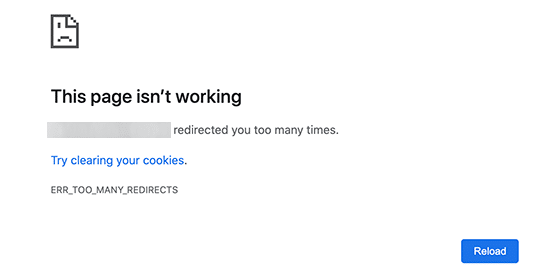
Different browsers display different error messages when they encounter too many redirects. Chrome shows “This page isn’t working” or “ERR_TOO_MANY_REDIRECTS” in its address bar. Firefox displays “The page isn’t redirecting properly” with additional details about clearing cookies. Safari presents “Too many redirects occurred trying to open” followed by your website URL. Edge shows “This page isn’t working right now” with suggestions to refresh or contact the site owner.
How Different Browsers Display Redirect Errors
Each browser handles redirect limits slightly differently, but they all stop at roughly the same point to prevent infinite loops from crashing your browser session.
What Triggers Redirect Loops
Several factors can create redirect loops in WordPress, and understanding these causes helps you target your troubleshooting efforts more effectively.
Most Common Causes of WordPress Redirect Loops
Prioritize your troubleshooting based on frequency and difficulty
Quick Action Priority
Check SSL First
Test both HTTP & HTTPS access
Disable All Plugins
Fastest way to test plugin conflicts
Verify URLs Match
Check WordPress Address settings
Pro Tip
SSL issues and plugin conflicts account for 80% of all redirect loops. Start with these two checks to resolve most problems quickly.
- SSL and HTTPS configuration problems top the list of redirect causes. Mixed SSL settings between WordPress and your hosting provider create conflicts where WordPress expects HTTP but your server forces HTTPS, or vice versa. This mismatch sends browsers bouncing between protocols indefinitely.
- Plugin conflicts represent another major source of redirect issues. Security plugins, caching systems, and SEO tools often implement their own redirect logic. When multiple plugins try to manage redirects simultaneously, they can override each other and create loops. Popular plugins like Wordfence, W3 Total Cache, and various SSL enforcement tools frequently clash in this way.
- Incorrect WordPress URLs in your database cause persistent redirect problems. When your “WordPress Address” and “Site Address” don’t match exactly, or when they use different protocols, WordPress gets confused about where to send visitors. This confusion manifests as endless redirect cycles.
- Server-level redirects can conflict with WordPress-level redirects. Apache and Nginx servers often have their own redirect rules configured through .htaccess files or server configuration files. When these server rules contradict WordPress settings, browsers get caught between competing instructions.
- Content delivery networks and caching services add another layer of complexity. CDNs like Cloudflare often force HTTPS connections while your WordPress site might still be configured for HTTP. This protocol mismatch creates redirect loops that appear to originate from WordPress but actually stem from external services.
- Permalink issues and corrupted .htaccess rules affect URL structure and can trigger redirect problems. WordPress uses the .htaccess file to create SEO-friendly URLs, but plugin installations, deactivations, or manual edits can corrupt these rules and cause redirect conflicts.
Step-by-Step Troubleshooting Guide
Fixing redirect loops requires a systematic approach, starting with the simplest solutions before moving to more complex server-level issues. Each step builds on the previous one, helping you isolate the exact cause of your redirect problem.
The key is testing your site after each fix attempt. This methodical process helps you identify the root cause without making unnecessary changes to your WordPress installation.
Redirect Error Troubleshooting Flow
Follow this logical sequence to identify and fix your redirect issue
Redirect Error Detected
Site shows “Too Many Redirects”
Test Different Browser
Clear cache & try incognito mode
Works in different browser?
Browser Issue
Clear cookies & cache completely
Check SSL Configuration
Test HTTP vs HTTPS access
SSL misconfigured?
Fix SSL Settings
Update WordPress URLs & hosting config
Deactivate All Plugins
Rename plugins folder via FTP
Site works without plugins?
Plugin Conflict
Reactivate one by one to find culprit
Check WordPress URLs
Verify siteurl & home match
URLs mismatched?
Fix WordPress URLs
Update via functions.php or wp-config
Reset .htaccess File
Delete & regenerate permalink rules
Still not working?
Issue Resolved!
Implement prevention strategies
Contact Hosting Support
Server-level configuration needed
1. Test with Different Browsers and Clear Cache
Start with the simplest solution that often resolves browser-specific redirect issues. Open your website in an incognito or private browsing window to bypass any stored cookies or cache that might be perpetuating the redirect loop.
Try accessing your site through different browsers entirely. If your site loads normally in Safari but fails in Chrome, or works in Firefox but not in Edge, you’ve identified a browser-specific issue rather than a server problem.
Clear your browser’s cache and cookies when you suspect stored data might be causing the redirect loop. Browser cache sometimes stores redirect instructions that persist even after you’ve fixed the underlying server issue.
Chrome:
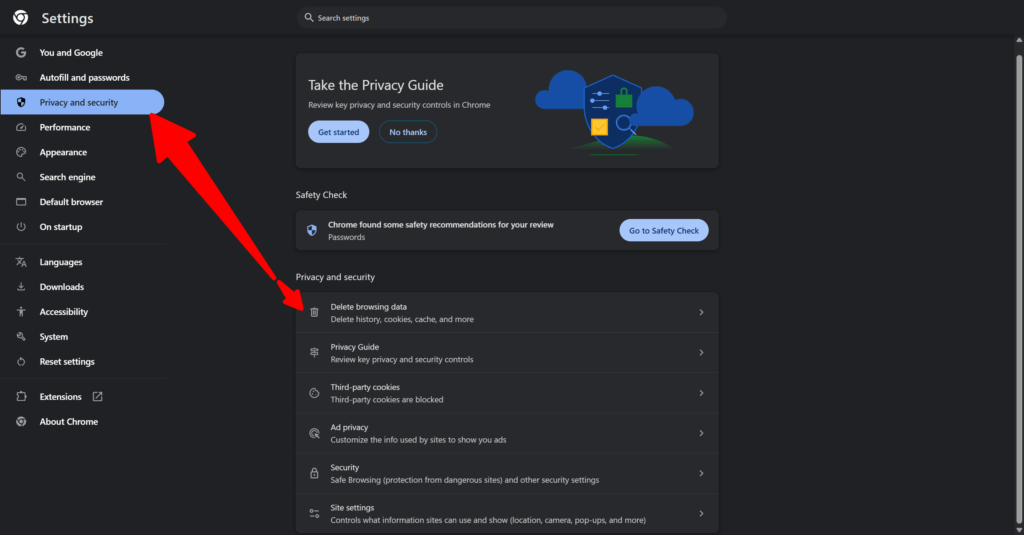
- Click the three vertical dots in the upper-right corner
- Navigate to Settings > Privacy and security > Delete browsing data
- Select “All time” as your time range
- Check both “Cookies and other site data” and “Cached images and files”
- Click “Clear data”
Firefox:
- Press Ctrl+Shift+Delete (or Cmd+Shift+Delete on Mac)
- Select “Everything” for the time range
- Check both “Cookies” and “Cache”
- Click “Clear Now”
Safari:
- Go to Safari menu > Preferences > Privacy tab
- Click “Manage Website Data”
- Click “Remove All” to clear cookies and site data
- Go to Preferences > Advanced tab
- Check “Show Develop menu in menu bar”
- Click Develop menu > “Empty Caches”
Test your website again after clearing browser data. If the redirect error persists across multiple browsers and after clearing cache, move to the next troubleshooting step.
2. Check SSL and HTTPS Configuration
SSL misconfigurations cause many redirect loops in modern WordPress installations. Your WordPress site might be set to HTTP while your hosting provider automatically forces HTTPS, creating an infinite loop between protocols.
Perform a quick SSL test by trying to access your site with both http:// and https:// prefixes. Type both versions directly into your browser’s address bar. If one version works while the other triggers the redirect error, you’ve found your problem.
Contact your hosting provider to confirm SSL certificates are properly installed and configured. Many hosts automatically install SSL certificates but don’t always update WordPress settings to match. This disconnect creates the protocol mismatch that causes redirect loops.
Check your hosting control panel for any “Force HTTPS” or “Force SSL” settings. These options automatically redirect HTTP traffic to HTTPS, which conflicts with WordPress sites that haven’t been properly configured for SSL. You might need to disable these server-level redirects temporarily while you update your WordPress settings.
Look for SSL-related plugins in your WordPress installation. Plugins like Really Simple SSL or SSL Insecure Content Fixer sometimes create redirect conflicts with server-level SSL enforcement. If you have SSL plugins active, deactivate them temporarily to test if they’re causing the redirect loop.
3. Deactivate All WordPress Plugins
Plugin conflicts frequently trigger redirect loops, especially among security, caching, and SEO plugins that manage redirects as part of their functionality. Since the redirect error prevents access to your WordPress admin area, you’ll need to deactivate plugins through your hosting file manager or FTP client.
Steps to deactivate plugins:
- Connect to your website’s files through your hosting control panel’s file manager or FTP client like FileZilla
- Navigate to the wp-content directory
- Rename the plugins folder to “plugins-disabled” or “plugins-off”
- Test your website immediately after renaming
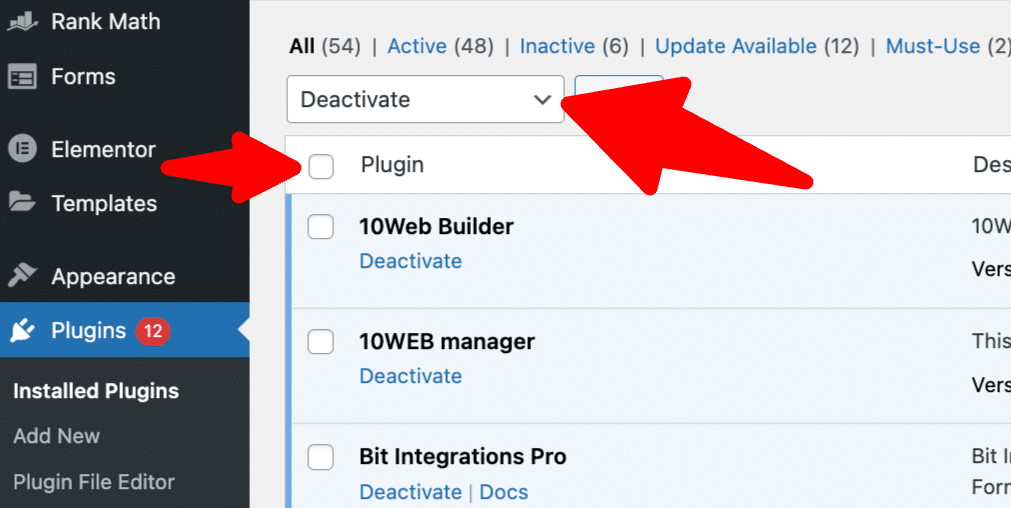
If your site loads normally, you’ve confirmed that a plugin conflict was causing the redirect loop. If the redirect error persists, rename the folder back to “plugins” and move to the next troubleshooting step.
To identify the problem plugin:
- Rename the folder back to “plugins” to reactivate everything
- Log into your WordPress admin area
- Go to Plugins and deactivate all plugins through the WordPress interface
- Reactivate plugins one at a time, testing your website after each activation
- When you find the problematic plugin, look for alternatives or contact the plugin developer
Common redirect-causing plugins include security plugins like Wordfence or Sucuri, caching plugins like W3 Total Cache or WP Rocket, SEO plugins like Yoast or RankMath, and any SSL or HTTPS enforcement plugins. These plugins often implement redirect logic that conflicts with other plugins or server settings.
4. Correct WordPress URLs
Mismatched WordPress URLs create redirect loops when your “WordPress Address” and “Site Address” settings don’t align perfectly. These URLs must use identical protocols (HTTP or HTTPS) and exact domain formatting to prevent redirect conflicts.
Try accessing your WordPress admin area through Settings and General if the redirect error allows any admin access. Compare the “WordPress Address URL” and “Site Address URL” fields to verify they match exactly. Both URLs should use the same protocol and identical domain formatting, including or excluding “www” consistently.
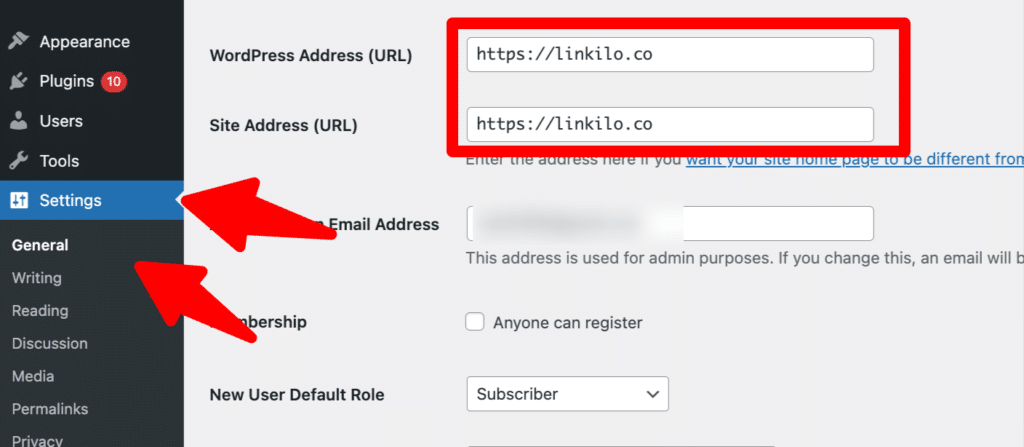
When you can’t access the WordPress admin area, you’ll need to update these URLs through your site’s files.
Method 1: Via functions.php (Recommended)
- Access your website files through FTP or hosting file manager
- Navigate to wp-content/themes/your-active-theme directory
- Edit the functions.php file of your currently active theme
- Add these lines at the very top, right after the opening PHP tag:
update_option('siteurl', 'https://yourwebsite.com');
update_option('home', 'https://yourwebsite.com');
- Replace ‘https://yourwebsite.com’ with your actual website URL
- Save the file and upload it back to your server
- Test your website (remove these lines after testing if the error resolves)
Method 2: Via wp-config.php (Temporary Fix)
- Edit the wp-config.php file in your website’s root directory
- Add these lines before the “That’s all, stop editing!” comment:
define('WP_HOME','https://yourwebsite.com');
define('WP_SITEURL','https://yourwebsite.com');
• Replace with your actual website URL • Save and test your website
5. Reset Your .htaccess File
WordPress uses the .htaccess file to manage permalinks and URL redirections, but plugin installations, deactivations, or manual edits can corrupt the redirect rules.
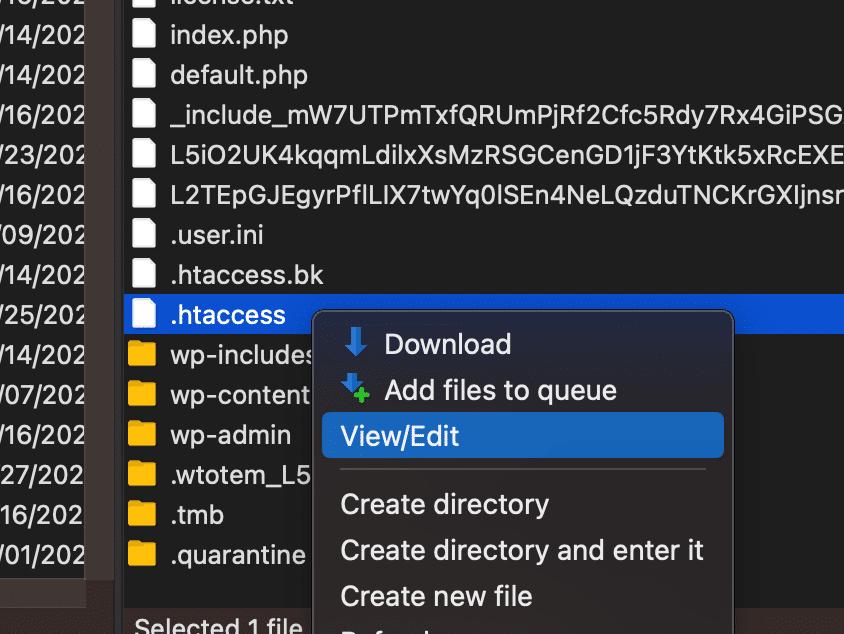
Steps to reset .htaccess:
- Access your website’s root directory through FTP or hosting file manager
- Look for the .htaccess file (enable “Show hidden files” if needed)
- Download a backup copy of your current .htaccess file to your computer
- Delete the .htaccess file completely from your server
- Test your website immediately
If your site loads normally without redirect errors, you’ve confirmed that corrupted .htaccess rules were causing the problem.
To regenerate a clean .htaccess file:
- Log into your WordPress admin area
- Go to Settings > Permalinks
- Click “Save Changes” without making any modifications
- WordPress automatically creates a new, clean .htaccess file
- Test your website to confirm it still works normally
6. Check for Server-Level Redirects
Your hosting provider might have server-level redirects configured that conflict with WordPress redirect settings. These redirects operate independently of WordPress and can create loops when they contradict your site’s internal redirect logic.
Log into your hosting control panel and look for redirect management sections. Common names include “Redirects,” “Domain Redirects,” “Forwarders,” or “URL Redirects.” Different hosting providers organize these settings in different locations within their control panels.
Look for any redirects that affect your main domain or WordPress directory. Pay special attention to redirects that force HTTPS, redirect www to non-www versions (or vice versa), or redirect your entire domain to another location.
Disable or modify any server-level redirects that might conflict with your WordPress settings. For example, if your server redirects all HTTP traffic to HTTPS but WordPress is configured for HTTP, you’ll get redirect loops.
Check your CDN settings if you use services like Cloudflare, MaxCDN, or similar content delivery networks. CDNs often have their own redirect and SSL settings that can override your WordPress configuration.
Contact your hosting provider’s support team if you’re unsure about server-level redirect settings. They can review your server configuration and identify any redirect rules that might be causing conflicts with WordPress.
7. Examine Your Database URLs
Sometimes redirect issues stem from corrupted or incorrect URLs stored in various WordPress database tables. These URLs can cause persistent redirect problems even after you’ve fixed the obvious configuration issues.
Access your website’s database through phpMyAdmin or your hosting provider’s database management interface. Look for the wp_options table, which stores most WordPress configuration settings.
Find the rows where option_name equals ‘home’ and ‘siteurl’. These rows contain the URLs that WordPress uses for internal redirects. Verify that both URLs use the correct protocol and domain format that matches your hosting setup.
Check the wp_posts table for any posts or pages that might contain hardcoded redirect URLs in their content. Look for meta redirects, JavaScript redirects, or other code that might be causing redirect loops.
Review the wp_postmeta table for custom fields that might contain redirect URLs. Some themes and plugins store redirect information in post meta fields that can cause problems if they contain incorrect URLs.
Consider using a search and replace tool like the Better Search Replace plugin or WP-CLI if you need to update multiple URLs throughout your database. These tools help you change old URLs to new ones without manually editing individual database entries.
Create a full database backup before making any direct database changes. Database modifications can break your site if done incorrectly, so having a backup allows you to restore your site if something goes wrong.
Advanced Troubleshooting
When basic fixes don’t resolve your redirect issues, the problem likely involves more complex configurations or custom implementations. These advanced solutions target deeper WordPress and server-level causes that standard troubleshooting steps can’t address.
Don’t attempt these fixes unless you’re comfortable working with databases and server configurations, or have proper backups in place.
Check WordPress Multisite Settings
WordPress multisite networks introduce additional redirect complexity that single-site installations don’t face. Domain mapping, subdomain configurations, and network-wide SSL settings can all create redirect conflicts.
Review your multisite network settings through the Network Admin area if you can access it. Check that your domain mapping settings align with your actual domain configuration. Mismatched domain mapping creates redirect loops between the main network domain and individual site domains.
Verify that subdomain or subdirectory settings match your actual multisite setup. If your network is configured for subdomains but you’re using subdirectories (or vice versa), you’ll get redirect errors when accessing individual sites.
Check network-wide SSL settings that might conflict with individual site settings. Some multisite setups enforce SSL at the network level while individual sites remain configured for HTTP, creating protocol conflicts.
Review any domain mapping plugins you’re using for multisite. These plugins sometimes create their own redirect logic that conflicts with WordPress core redirect handling.
Examine Custom Code
Custom code in your theme files, plugins, or functions.php might be creating redirects that cause loops. Look for any redirect logic that might be conflicting with WordPress core redirects or other plugins.
Check your active theme’s functions.php file for any custom redirect code. Look for functions that use wp_redirect(), header() redirects, or JavaScript-based redirects that might be causing conflicts.
Review any custom plugins or must-use plugins that might implement redirect logic. These plugins sometimes use redirect hooks that interfere with normal WordPress redirect handling.
Look for .htaccess modifications that might have been added by developers or plugins. Custom redirect rules in .htaccess can conflict with WordPress permalink redirects.
Check for any conditional redirects based on user roles, device types, or other factors. These redirects sometimes create loops when the conditions aren’t properly structured.
CDN and Caching Issues
Content delivery networks and caching services can create redirect loops through their own redirect and SSL settings that override your WordPress configuration.
Cloudflare users should check their SSL/TLS encryption mode in the Cloudflare dashboard. The setting should be “Full” or “Full (strict)” to match your server’s SSL configuration. “Flexible” mode often creates redirect loops with WordPress sites that are configured for HTTPS.
Review any page rules in Cloudflare that might be creating redirects. Page rules can force HTTPS, redirect www to non-www, or create other redirects that conflict with WordPress settings.
Check your origin server settings in your CDN configuration. Make sure the CDN is connecting to your server using the correct protocol (HTTP or HTTPS) that matches your WordPress configuration.
Temporarily disable your CDN service to test if it’s causing the redirect issues. If your site works normally with the CDN disabled, you know the problem lies in your CDN settings rather than WordPress itself.
Other CDN services like MaxCDN, KeyCDN, or Amazon CloudFront have similar settings that can cause redirect conflicts. Review their SSL and redirect settings to make sure they align with your WordPress configuration.
Prevention Strategies
Once you’ve resolved your redirect issues, implementing proactive measures prevents future occurrences. These strategies focus on maintaining clean configurations and monitoring your site’s health before problems escalate.
Prevention is always easier than troubleshooting emergency redirect loops that lock you out of your admin area.
WordPress Redirect Prevention Dashboard
Stay proactive with these essential maintenance tasks and monitoring checks
Regular Maintenance Tasks
Essential weekly and monthly checks
Test site accessibility
Check both HTTP and HTTPS versions work properly
WeeklyReview plugin updates
Test updates on staging before applying to live site
WeeklyBackup website files
Complete backup of files and database
MonthlyClean .htaccess file
Remove obsolete redirect rules and comments
MonthlyAudit redirect plugins
Review which plugins manage redirects, remove duplicates
QuarterlyRisk Assessment
Monitor these potential trouble areas
SSL Certificate Status
Valid SSL with proper configuration
Plugin Count
8 active plugins (3 manage redirects)
URL Consistency
Mixed HTTP/HTTPS references detected
Monitoring Tools Setup
Essential tools to catch issues early
UptimeRobot
FreeGoogle Search Console
FreePingdom
$15/moEmergency Quick Actions
Keep these bookmarked for fast troubleshooting
Plugin Emergency
Rename /wp-content/plugins folder via FTP
plugins → plugins-disabled
URL Quick Fix
Add to wp-config.php temporarily
define('WP_HOME','https://site.com');
Reset .htaccess
Delete file, regenerate via Permalinks
Settings → Permalinks → Save
SSL Test
Test both protocols quickly
http://site.com vs https://site.com
When to Contact Support
Some redirect issues require server-level access or expertise that goes beyond standard WordPress troubleshooting. Recognizing when you need professional help saves time and prevents potentially damaging your site with incorrect configurations.
Your hosting provider has access to server logs and configurations that can reveal redirect causes invisible from the WordPress side.
Contact your hosting provider when none of the standard troubleshooting steps resolve your redirect issues. They can check server-level redirect rules, SSL configurations, and Apache or Nginx settings that might be causing conflicts.
Reach out for help when you suspect server-level configuration problems that you can’t access through normal WordPress or hosting panel interfaces. Complex hosting setups with load balancers or reverse proxies sometimes require direct server administration.
Get support when your site uses enterprise-level hosting with custom server configurations. These environments often have additional redirect layers that require specialized knowledge to troubleshoot.
Contact support when you’re uncomfortable making file modifications or database changes. Professional help is worth the cost when you risk damaging your site with incorrect troubleshooting attempts.
Provide your hosting support team with detailed information about your troubleshooting efforts. Include exact error messages, browser details, steps you’ve already taken, any recent changes to your site, and screenshots of error messages.
Document the timeline of when redirect issues started and any changes that preceded the problems. This information helps support teams identify the root cause more quickly.
Conclusion
The “Too Many Redirects” error, while frustrating, usually has a straightforward solution when you approach it systematically. Start with simple browser-related fixes, then progress through plugin conflicts, URL corrections, and .htaccess issues.
Most redirect loops stem from plugin conflicts or SSL configuration problems. Following this systematic troubleshooting guide should resolve your redirect issues and restore normal access to your WordPress site.
Implement prevention strategies once your site is working again. Regular maintenance, careful change management, and proactive monitoring will help you avoid future redirect loop headaches and keep your site accessible to both visitors and search engines.
Frequently Asked Questions About WordPress Redirect Errors
Get quick answers to the most common questions about fixing “Too Many Redirects” errors
What causes the “Too Many Redirects” error in WordPress?
The most common causes are SSL/HTTPS configuration mismatches (45% of cases), plugin conflicts between security or caching plugins (35% of cases), and WordPress URL settings that don’t match exactly. Server-level redirects, corrupted .htaccess files, and CDN settings can also trigger redirect loops that prevent access to your site.
How do I fix redirect errors when I can’t access my WordPress admin?
Use FTP or your hosting file manager to rename the plugins folder to “plugins-disabled” which deactivates all plugins instantly. If that doesn’t work, add URL fix code to your wp-config.php file or edit functions.php. You can also reset your .htaccess file by deleting it completely and regenerating it later through WordPress.
Which plugins most commonly cause redirect loops?
Security plugins like Wordfence and Sucuri, caching plugins such as W3 Total Cache and WP Rocket, SEO plugins including Yoast and RankMath, and SSL enforcement plugins frequently cause conflicts. The problem occurs when multiple plugins try to manage redirects simultaneously, creating competing rules that trap browsers in loops.
Should I test HTTP and HTTPS versions of my site?
Yes, absolutely. Type both http://yoursite.com and https://yoursite.com directly into your browser. If one works and the other shows redirect errors, you have an SSL configuration mismatch. Your WordPress settings might be configured for HTTP while your hosting provider forces HTTPS, or vice versa, creating an infinite redirect loop.
How do I fix WordPress URL mismatches causing redirects?
Add these lines to your functions.php file: update_option(‘siteurl’, ‘https://yoursite.com’); and update_option(‘home’, ‘https://yoursite.com’); Make sure both URLs use identical protocols and formatting. Alternatively, add WP_HOME and WP_SITEURL definitions to wp-config.php as a temporary fix to regain admin access.
Can clearing browser cache fix redirect errors?
Sometimes, yes. Browsers cache redirect instructions, so even after fixing server issues, your browser might keep following old redirect rules. Test your site in incognito mode or a different browser first. If it works there, clear your cookies and cache completely. However, if multiple browsers show the same error, the problem is server-side, not browser-side.
What should I do if none of the basic fixes work?
Contact your hosting provider for server-level troubleshooting. The issue might involve Apache/Nginx redirect rules, CDN configurations, or complex hosting setups with load balancers. Check your hosting control panel for domain redirects, SSL enforcement settings, and CDN configurations that might override WordPress settings.
How do I prevent redirect errors from happening again?
Test all plugin updates on staging sites first, maintain consistent URL formatting (stick to HTTPS and www/non-www), limit redirect-managing plugins to one reliable option, monitor your site with tools like UptimeRobot, backup your .htaccess file before making changes, and document any custom redirects you implement.
Can CDNs like Cloudflare cause redirect loops?
Yes, CDN SSL settings often conflict with WordPress configurations. Cloudflare’s “Flexible” SSL mode frequently causes redirect loops. Set your SSL/TLS mode to “Full” or “Full (strict)” to match your server’s SSL setup. Check page rules for conflicting redirects and temporarily disable the CDN to test if it’s causing the issue.
Why does my site work on mobile but not desktop (or vice versa)?
This usually indicates browser-specific cache issues rather than server problems. Different devices may have different cached redirect rules, or you might have device-specific redirect plugins active. Clear cache on the affected device, test in incognito mode, and check for mobile redirect plugins that might be causing conflicts.
How do I safely reset my .htaccess file?
First, download a backup copy to your computer via FTP or file manager. Then delete the .htaccess file from your site’s root directory and test immediately. If your site works, regenerate the file by going to WordPress Admin > Settings > Permalinks and clicking “Save Changes” without making modifications. This creates clean permalink rules.
What information should I provide to hosting support?
Include exact error messages and which browsers show them, screenshots of the errors, steps you’ve already taken (plugin deactivation, URL checks, etc.), when the problem started, any recent changes to your site, and your domain name. This helps support teams diagnose server-level issues faster without repeating basic troubleshooting.
Linkilo does this for you
- Redirection Manager : Catch 404s as they happen and redirect them before anyone notices the traffic went missing.
- Internal Link Click Analytics : Find out which internal links people actually click, and stop guessing which ones earn their place.
- Crawl Log File Analyzer : See exactly which pages Google and the AI crawlers actually visit, inside WordPress, with no log files to download.

Jay - Linkilo
Jay's the brains behind cool tools like Linkilo, helping marketers rock their SEO game. He's all about data-driven strategies and using AI to boost results. He's been at this for a decade and loves figuring out what works (and what doesn't) to get more leads without paying a fortune. <a href="https://www.linkedin.com/in/jay-kang-80b103309/">Linkedin</a>