
So, you’re wondering about that little slash (/) at the end of a URL…
Maybe you’ve stumbled across it while building your website. Or perhaps an SEO audit flagged it as a potential issue. Either way, you’re probably here because you want to know if that tiny trailing slash really matters.
And the short answer? Yes, it can.
Why should you care? Well, whether you’re a business owner trying to boost your website traffic, a blogger aiming to rank higher in search results, or an SEO professional looking to optimize your client’s sites, understanding this seemingly small detail can make a big difference.
Here’s the deal: trailing slashes can impact how search engines view your website, affecting your rankings, traffic, and ultimately, your bottom line. In this article, we’re going to break down everything you need to know about trailing slashes, from what they are to how to handle them.
What is a Trailing Slash?
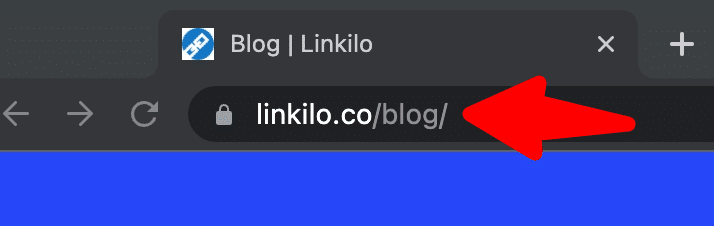
Simply put, a trailing slash is that forward slash (/) you sometimes see at the very end of a URL.
For example:
URL Structure Comparison
Indicates a directory/folder
Indicates a file/page
Key Point: To search engines, these are two completely different URLs, even though they might show the same content.
It might seem like a minor difference, but to a web server (and search engines), these two URLs can be seen as distinct locations.
Why Should You Care About Trailing Slashes?
Here’s the complete breakdown of why this seemingly minor detail can have a real impact:
How Trailing Slashes Impact Your SEO
Duplicate Content Risk
High
Same content on multiple URLs confuses search engines
Link Equity Split
50/50
Authority gets divided between URL versions
Solution: Choose one URL format and redirect the other to avoid these issues
- Duplicate Content: Search engines like Google dislike duplicate content. They see it as unhelpful and confusing for users. If your website is accessible both with and without trailing slashes, search engines might consider those as two separate pages with identical content. This can hurt your rankings because it’s unclear which version should be shown in search results.
- Link Equity (or “Link Juice”): When other websites link to yours, they pass along some of their authority, known as “link equity” or “link juice.” But if some links point to the trailing slash version and others to the non-trailing slash version, that link equity gets split. By choosing one consistent approach, you consolidate that authority and can potentially boost your rankings.
- User Experience: While most users won’t notice if a trailing slash is missing, it can occasionally lead to broken links or redirect loops, creating a frustrating experience.
- Canonicalization: To avoid duplicate content issues, you can tell search engines which version of your URL is the preferred one using a “canonical tag.” If you’re not careful with trailing slashes, this can become a technical headache.
- Indexing and Crawling: Search engine bots crawl your website by following links. If they encounter both versions of your URLs (with and without trailing slashes), they might spend extra time crawling what they perceive as duplicate pages. This can waste crawl budget and potentially delay the indexing of new content.
- Analytics and Tracking: Inconsistent use of trailing slashes can also mess with your website analytics. If you’re tracking data for each URL, you might end up with fragmented reports that don’t accurately reflect user behavior.
Trailing slash and SEO
It makes no difference from an SEO standpoint whether a URL has or does not contain a trailing slash. Google stated in 2010 that it doesn’t matter until both variations return a status code of 200 (OK). Instead, for your preferred variation, return a 200 status code, and for the other, return a 301 redirect to the preferred variant:
https://www.example.com/folder (200)
https://www.example.com/folder/ (301 redirects)?
https://www.example.com/folder
What does Google think about URLs with a trailing slash?
The use of trailing slashes has a significant influence on SEO. That’s why John Mueller commented on the phenomena on Twitter.
He highlighted regular webmaster complaints about the misleading use of slashes. Mueller does not entirely agree with the comments directed at Google. He emphasizes that servers automatically categorize slashes at the end of URLs in this manner. It doesn’t matter to him whether you add slashes after host or domain names.
On the other hand, a slash put somewhere else has an entirely different perception and affects the entire URL. Google does not require slashes or deleting them, but it wants users to be consistent in their actions. Therefore, the most common option is to use slashes at the end of URLs.

Trailing Slashes Examples in Action
To really cement this, let’s look at a few scenarios:
Scenario 1: The E-Commerce Store
Imagine you run an online store. You have category pages (like /clothing/ or /electronics/) and product pages (like /product123).
- Good Practice:
- Category Pages: Use trailing slashes (
/clothing/) - Product Pages: No trailing slashes (
/product123)
- Category Pages: Use trailing slashes (
- Why: This helps search engines understand the hierarchical structure of your website. Category pages are containers for multiple products, so the trailing slash indicates a directory. Product pages represent individual items, so there’s no need for a trailing slash.
Scenario 2: The Blog
Let’s say you’re a blogger. You have a main blog page (/blog/) and individual blog post pages (like /blog/post-title).
- Good Practice:
- Blog Page: Use a trailing slash (
/blog/) - Blog Post Pages: No trailing slashes (
/blog/post-title)
- Blog Page: Use a trailing slash (
- Why: Similar to the e-commerce example, this helps search engines differentiate between the blog as a whole (a directory) and the individual blog posts (files).
Scenario 3: The News Website
You manage a news site with different sections (like /world-news/, /sports/, etc.) and individual news articles.
- Good Practice:
- Section Pages: Use trailing slashes (
/world-news/) - Article Pages: No trailing slashes (
/news-article-title)
- Section Pages: Use trailing slashes (
- Why: Again, the trailing slash signals a directory or category, helping search engines understand your site’s structure.
Remember: These are just examples. The most important thing is to choose a standard and stick to it consistently across your entire website.
Should You Use a Trailing Slash? It Depends (But Here’s How to Decide)
There’s no one-size-fits-all answer to the question of whether or not to use trailing slashes. Both approaches are technically valid. However, there are certain best practices and considerations that can help you make the right decision for your website:
Interactive Trailing Slash Decision Tree
Why These Best Practices?
These recommendations are based on several factors:
- Technical Considerations: Web servers typically treat URLs with trailing slashes as directories, making it easier to handle requests and organize your site’s structure.
- SEO Benefits: Consistency in URL structure helps search engines understand your website’s hierarchy and avoid duplicate content issues. This can lead to improved crawling, indexing, and ranking.
- User Experience: While most users won’t notice a missing trailing slash, consistent usage can prevent unexpected errors or broken links.
How to Choose the Right Approach for Your Website:
Trailing Slash Approach Comparison
Recommendation: Use trailing slashes for directories/categories and no trailing slashes for individual pages
Ultimately, the best approach for your website depends on your individual preferences and technical setup. The most important thing is to choose a standard and stick to it consistently throughout your entire site.
Important Note: If you have an existing website with inconsistent use of trailing slashes, don’t worry! You can use 301 redirects and canonical tags to address these issues.
How to Handle Trailing Slashes: Technical Solutions
Here’s a breakdown of the technical steps you can take to address trailing slash inconsistencies:
1. Choose Your Standard:
With Trailing Slashes (Recommended for Most): This is generally considered the most SEO-friendly approach. It involves adding a trailing slash to all URLs that represent folders or directories (e.g., https://www.yoursite.com/blog/) and removing trailing slashes from URLs that represent files (e.g., https://www.yoursite.com/blog-post-title).
Without Trailing Slashes: This is less common but still valid. It involves consistently removing trailing slashes from all URLs.
2. Implement 301 Redirects:
- .htaccess (Apache): If your server uses Apache, you can edit your
.htaccessfile to create redirects. Here’s an example rule for redirecting non-trailing slash URLs to trailing slash versions:
RewriteCond %{REQUEST_FILENAME} !-f
RewriteRule ^(.*[^/])$ /$1/ [L,R=301]
- NGINX: For NGINX servers, you can use this configuration:
rewrite ^/(.*[^/])$ /$1/ permanent;
Other Servers or CMS: Consult your server documentation or CMS support resources for specific instructions on implementing redirects.
3. Set Canonical Tags:
- Regardless of your redirect strategy, add canonical tags to all your pages. This tag should point to the preferred version of the URL (with or without the trailing slash, depending on your chosen standard). Here’s an example:
<link rel="canonical" href="https://www.yourwebsite.com/blog/" />
4. How to Adjust Trailing Slashes in WordPress:

- Access Permalinks Settings:
- Log in to your WordPress admin dashboard.
- Navigate to “Settings” -> “Permalinks.”
- Choose Your Structure:
- With Trailing Slashes:
- Select the “Plain” permalink structure.
- Add a trailing slash (/) to the end of the “Custom Structure” field. For example, if your current custom structure is “/%postname%”, change it to “/%postname%/”
- Without Trailing Slashes:
- Choose any permalink structure other than “Plain.”
- Ensure there is NO trailing slash at the end of the “Custom Structure” field.
- With Trailing Slashes:
- Save Changes:
- Click the “Save Changes” button to apply your new permalink structure.
Important Note:
- Changing your permalink structure can impact your existing links. WordPress will try to automatically redirect old URLs to the new ones, but it’s a good practice to manually update any important internal links and check for broken links afterward.
- If you’re using a caching plugin, clear your cache after making changes to your permalink settings.
Advanced Options:
- Yoast SEO Plugin: If you have the Yoast SEO plugin installed, you can find additional trailing slash options under the “Advanced” tab in the Yoast settings.
- Permalink Manager Pro: This plugin offers more granular control over trailing slashes and allows you to set up custom redirect rules.
How to delete the trailing slash on WordPress?
Because of the directory structure, WordPress views the discussed trailing slash positively. As a result, using slashes at the end of URLs on this platform is perfectly acceptable. This is a program default option that can be changed by direct linking. You can add or delete the slash at any moment if you use a custom setting structure.
WordPress settings:
/%postname%/ – has the slash at the end of the URL
/%postname% – doesn’t have the slash
WordPress will automatically analyze how the user’s version of the setting above changes. It will add 301 redirects, change internal links, and change canonical tags. The site map will be updated as well. Contact the hosting company if you wish to make modifications or if your redirects aren’t working correctly.
Important Considerations:
- Test Thoroughly: After implementing redirects or making changes to your site’s configuration, test your URLs thoroughly to ensure they are redirecting correctly and that there are no broken links.
- Update Internal Links: If you change your trailing slash preference, update all internal links on your website to point to the correct version of the URL.
- Monitor Your Analytics: Keep an eye on your website analytics to see how the changes affect your traffic and rankings.
How to Verify Your Trailing Slash

- Update your sitemap regularly to ensure it always lists correctly structured URLs.
- Check which version of your important pages is indexed with Google’s URL inspection tool.
- Google Search Console Coverage – This view of the Google Search Console will highlight any issues found during a site crawl.
Troubleshooting Trailing Slash Issues
Even with careful planning, you might run into a few hiccups when dealing with trailing slashes. Here are some common issues and how to tackle them:
| Issue | Possible Cause | Solution |
| Broken Links | Changed trailing slash preference, resulting in old links no longer working | Implement 301 redirects from old URLs to new URLs with your preferred trailing slash configuration. |
| Duplicate Content Errors in GSC | Incorrect implementation of 301 redirects or canonical tags | Double-check redirects and canonical tags. Submit an updated sitemap to Google Search Console. |
| WordPress Trailing Slash Problems | Incorrect permalink settings in WordPress | Review and adjust permalink settings. Consider using a plugin like Yoast SEO or Permalink Manager Pro. |
| Inconsistent Analytics Data | Tracking both versions of URLs | Create a filter in Google Analytics (or your preferred analytics platform) to consolidate data. |
| Mixed Signals from External Links | Other websites linking to both versions of your URLs | Focus on consistent internal linking on your own website. |
| Other CMS Issues | Platform-specific configuration issues | Consult your CMS documentation or support forums for troubleshooting tips. |
In Conclusion
Trailing slashes might seem like a minor technicality, but as we’ve seen, they can have a real impact on your website’s SEO and user experience. Understanding the nuances of trailing slashes, choosing a consistent approach, and implementing the technical solutions outlined in this article will help you take control of this often-overlooked detail and make sure your website is optimized for success.
Keep these points in mind:
- Consistency is Key: Choose a standard (with or without trailing slashes) and apply it consistently across your entire website.
- Technical Solutions: Implement 301 redirects and canonical tags to address existing inconsistencies and avoid duplicate content issues.
- WordPress Users: Check your permalink settings to control trailing slash behavior.
- Troubleshoot: If you encounter issues, refer to the troubleshooting tips in this article or seek assistance from a web developer or SEO professional.
Frequently Asked Questions About Trailing Slash URLs
Get expert answers to the most common questions about trailing slashes and their impact on SEO
Does the trailing slash really affect my SEO rankings?
Yes, trailing slashes can impact your SEO rankings. When both versions of your URL (with and without trailing slash) are accessible, search engines may treat them as duplicate content, splitting your link equity and confusing crawlers. Google confirmed that consistency matters more than which format you choose. Pick one approach and stick to it across your entire website.
Should I use trailing slashes for all my URLs?
No, you shouldn’t use trailing slashes for all URLs. Best practice is to use trailing slashes for directories and category pages (like /blog/ or /products/) and no trailing slash for individual pages and posts (like /about or /blog-post-title). This helps search engines understand your site’s structure and hierarchy.
How do I fix trailing slash inconsistencies on my website?
Fix inconsistencies by implementing 301 redirects from your non-preferred version to your preferred version. Use .htaccess rules for Apache servers or NGINX configuration for NGINX servers. Also add canonical tags pointing to your preferred URL format and update your sitemap to reflect the consistent structure.
Will changing my trailing slash structure hurt my rankings?
Properly implemented changes won’t hurt your rankings. Use 301 redirects to redirect old URLs to new ones, which passes nearly 100% of link equity. Update internal links, submit an updated sitemap to Google Search Console, and monitor your rankings for 4-6 weeks. Most sites see improved performance after fixing trailing slash inconsistencies.
How do I set up trailing slashes in WordPress?
Go to Settings → Permalinks in your WordPress admin. For trailing slashes, use “/%postname%/” in the custom structure field. For no trailing slashes, use “/%postname%” without the final slash. WordPress automatically handles redirects and updates internal links when you change permalink structures. Clear any caching plugins after making changes.
What’s the difference between how servers treat URLs with and without trailing slashes?
Web servers typically interpret URLs with trailing slashes as directories and URLs without trailing slashes as files. When you request a directory without a trailing slash, the server often performs an automatic redirect to add the slash, which creates an extra HTTP request and slightly slower load times.
Can trailing slash issues cause duplicate content problems?
Yes, if both URL versions return a 200 status code with identical content, search engines may see them as duplicate pages. This dilutes your link equity, wastes crawl budget, and can hurt your rankings. Always choose one format and redirect the other version to avoid duplicate content issues.
How do I check which version of my URLs Google has indexed?
Use Google Search Console’s URL Inspection tool to check which version is indexed. Also perform site: searches in Google (like “site:yoursite.com/page” vs “site:yoursite.com/page/”) to see which versions appear in search results. The Coverage report in Search Console will also show any duplicate content issues.
Do trailing slashes affect page load speed?
Inconsistent trailing slash usage can slightly affect load speed due to unnecessary redirects. When users or bots access the non-preferred version, the server performs an automatic redirect, adding 50-200ms to load time. Consistent implementation eliminates these extra redirects and provides a faster user experience.
Should I worry about external links pointing to the wrong URL format?
Don’t worry about external links pointing to different formats – this is normal and expected. Focus on setting up proper redirects so all versions point to your preferred format. Your 301 redirects will ensure external links pass their full link equity to your preferred URL version, regardless of which format other sites use when linking to you.
How long does it take for Google to recognize trailing slash changes?
Google typically recognizes and processes trailing slash changes within 2-4 weeks for most websites. Submit your updated sitemap to Google Search Console and request indexing for your most important pages to speed up the process. Monitor your Search Console coverage report to track the transition progress.
What’s the biggest mistake websites make with trailing slashes?
The biggest mistake is inconsistency – having some URLs with trailing slashes and others without, with no clear pattern or proper redirects. This creates duplicate content issues, splits link equity, and confuses both search engines and users. Always choose one approach and implement it consistently across your entire website with proper redirects for the non-preferred version.
Linkilo does this for you
- Redirection Manager : Catch 404s as they happen and redirect them before anyone notices the traffic went missing.
- AI Internal Link Suggestions : Get link suggestions a human editor would approve, and add them in one click without leaving the editor.
- Broken Link Checker & One-Click Repair : Find every dead link on your site and fix it in one click. No spreadsheets, no manual editing.

Jay - Linkilo
Jay's the brains behind cool tools like Linkilo, helping marketers rock their SEO game. He's all about data-driven strategies and using AI to boost results. He's been at this for a decade and loves figuring out what works (and what doesn't) to get more leads without paying a fortune. <a href="https://www.linkedin.com/in/jay-kang-80b103309/">Linkedin</a>