Your website keeps a journal. Every time someone — or something — visits a page, your server scribbles a line into a file recording exactly what happened: who showed up, what they asked for, when they arrived, and how the server responded.
That journal is your log file. And reading it is the closest thing in SEO to watching Google work in real time.
Here’s the thing most articles on this topic won’t tell you: in 2026, the journal you’ve been told to read is incomplete. The bots that matter most aren’t all hitting your origin server anymore. The advice to “pull your raw access logs into Excel” is solving a 2018 problem with a 2018 method.
This guide fixes that. We’ll cover what log file analysis actually is, why it matters more than your other SEO tools, how to do it on WordPress without losing a weekend to data plumbing, and how to handle the swarm of AI crawlers — GPTBot, ClaudeBot, PerplexityBot, and the rest — that older guides don’t even mention.
What log file analysis actually is
A server log file is a plain-text record your web server creates automatically. Every request — a person loading your homepage, Googlebot fetching a product page, a CDN edge node revalidating a stylesheet — gets one line. That line typically includes:
- The visitor’s IP address
- A timestamp
- The HTTP method (GET, POST, etc.)
- The URL requested
- The HTTP status code (200, 301, 404, 500…)
- The user agent string identifying the visitor
- The referrer
- The number of bytes transferred
- Often, the response time
Log file analysis is the practice of taking those raw records — sometimes millions of lines per day — filtering them down to search engine and AI crawler activity, and turning the patterns into decisions about your site.
Here’s the analogy that lands cleanly: Google Search Console is like getting a quarterly report from a tenant. Log file analysis is the security camera footage. Both are useful. Only one shows you what happened minute by minute.
Why this matters more than your other SEO tools
Search Console, Google Analytics, and your favorite SEO platform all give you sampled, filtered, and delayed views of crawler activity. Logs give you the unfiltered ground truth. Specifically, logs are the only source that reveals:
- Every single request a bot made, not a sample
- Which bot it actually was (after you verify it — fake bots are common)
- Exactly when crawls happened, down to the second
- Which URLs Google ignored entirely (because they never appear in logs)
- AI crawler activity that no Search Console-style tool reports
To put the scale of that last point in perspective: Cloudflare’s 2025 Year in Review found that user-driven AI bot crawling grew 15× during 2025. TollBit’s State of the Bots report tracked the AI-bot-to-human ratio rising from roughly 1:200 at the start of 2025 to 1:31 by year-end. If you’re not looking at logs, that traffic is invisible to you.
The Crawl Reality Gap (and why it’s the actual problem)
Here’s a framework worth naming, because it explains why most log analyses go wrong before they start.
The Crawl Reality Gap is the delta between three things:
- What Search Console shows you — Google’s view of its own crawling, summarized, sampled, and 90 days of history.
- What your origin server logs show you — every request that actually reached your WordPress install (after the CDN, after the cache).
- What’s actually hitting your site — every request, including the ones served by your CDN edge before they ever touched WordPress.
For a typical WordPress site behind Cloudflare or another CDN, those three views can disagree by an order of magnitude. Your origin Apache log might show 5,000 Googlebot hits a month. Cloudflare’s edge log shows 50,000. Search Console shows “about 40,000.”
So which one is right? All of them — for what they each measure. The mistake is treating any one of them as the full picture. The job of log file analysis is closing that gap, and the job of any tool you choose is being honest about which slice it sees.
The Crawl Reality Gap: What Each Data Source Actually Sees
Why no single tool gives you the complete picture of crawler activity on your site
| Data Source | Search Console | Origin Server Logs | Edge / CDN Logs |
|---|---|---|---|
| Googlebot activity | PartialSummarized & sampled | PartialOnly uncached requests | CompleteEvery request |
| Bingbot activity | No | Partial | Yes |
| AI crawlers (GPTBot, ClaudeBot, etc.) | No | Partial | Yes |
| Historical depth | 90 days | Your retention | Your retention |
| URL-level granularity | Rounded | Exact | Exact |
| Cached responses | No | NoNever reach origin | Yes |
| Spoofed bot detection | No | Manual verify | Manual verify |
| Real-time visibility | Delayed days | Live | Live |
Real-world example: WordPress site behind Cloudflare
Monthly Googlebot hits — same site, same month, three different numbers. All are correct for what they measure.
Logs vs. Search Console vs. analytics: what each one actually shows you
This is the source of more confusion than almost anything in technical SEO, so let’s settle it.
Google Analytics (GA4) runs JavaScript in users’ browsers. It only sees humans (or bots that execute JS, which most don’t). It tells you nothing about Googlebot.
Google Search Console’s Crawl Stats report shows you Google’s view of its own crawling — but only Google’s, only summarized, and only for the last 90 days. It won’t tell you about Bingbot, GPTBot, or anyone else.
Server log files record every request that hits your origin server, regardless of who made it or why. They include every bot, every status code, every URL — capped only by your retention settings. On WordPress, an application-layer logger like Linkilo’s Crawl Log Analyzer captures every request that gets routed to PHP, which is most of what matters for SEO.
Edge logs (Cloudflare, Fastly, CloudFront, Akamai) show requests that hit the CDN — including the ones served from cache that never reached your origin.
Practical implication: if you want to know whether Google is wasting crawl on your faceted navigation, Search Console will hint at it. Logs will prove it, name the URLs, and show you the volume. And on a CDN-fronted WordPress site, you usually need both edge logs and application logs to see the full picture.
“Crawl budget” is the wrong frame. Here’s the right one.
You’ll see “crawl budget” in nearly every article on this topic. Google takes a fairly dismissive view: in their official guidance, Gary Illyes wrote that “if a site has fewer than a few thousand URLs, most of the time it will be crawled efficiently”, and crawl budget management is only documented for sites over one million URLs or 10,000 URLs with daily updates.
That’s technically correct and practically misleading. Even a 5,000-page WordPress site with WooCommerce filters, parameter URLs, or a recent migration can routinely show Googlebot spending the majority of its requests on URLs that should never be indexed. The better frame, popularized by Jes Scholz, is crawl efficacy: not “how much does Google crawl?” but “is Google reaching the URLs that actually matter to your business?”
When you analyze logs, you’re not optimizing a budget. You’re auditing whether the world’s most important crawler is paying attention to the right pages. That reframe matters because it makes the work valuable for sites of every size.
Who actually needs to do this (and who can skip it)
Be honest with yourself about which bucket you fall into.
You should absolutely be doing log file analysis if any of these apply:
- You have more than ~10,000 indexable URLs
- Your site has faceted navigation, search filters, or parameter-heavy URLs (any WooCommerce store qualifies)
- You’re a publisher or news site
- You’ve recently migrated, redesigned, or replatformed
- You’re seeing high “Discovered – currently not indexed” numbers in Search Console
- You’re trying to understand or measure AI crawler activity
You can probably skip it if all of these are true:
- You have fewer than 1,000 URLs
- You’re not on a CDN
- You’re not seeing crawl-related issues in Search Console
- Nothing major has changed on the site recently
Even in the second group, there’s value in checking once. You may be wrong about not having issues.
How to actually get your log files
This is where many guides hand-wave. Here’s the real picture.
If you have a traditional host (cPanel, Plesk, dedicated server)
Most shared hosts give you access to raw access logs through cPanel under “Raw Access” or “Metrics,” or via Plesk under your domain’s “Logs” section. You can usually download them as .gz-compressed files. If your host doesn’t expose them, ask support — most will turn them on or send them on request.
The defaults vary by web server:
- Apache writes to
/var/log/apache2/access.log(Debian/Ubuntu) or/var/log/httpd/access_log(RHEL/CentOS) - Nginx writes to
/var/log/nginx/access.log - IIS writes W3C Extended logs to
%SystemDrive%inetpublogsLogFiles
If you’re on managed WordPress hosting
WP Engine, Kinsta, SiteGround, and Cloudways all provide access logs through their dashboards or via SFTP. Look for a “Logs” or “Access Logs” tab. Retention is typically 14–30 days, which is shorter than you want — pull them regularly or arrange long-term storage.
If you’re behind a CDN (and almost everyone is)
This is the trap that breaks most analyses. A CDN serves cached responses from edge servers without ever hitting your origin. That means a bot can crawl 10,000 pages on your site and your origin Apache log shows almost nothing. The real activity lives at the edge.
You need edge logs:
- Cloudflare: Logpush sends logs to S3, GCS, R2, BigQuery, Datadog, Splunk, or other destinations. As of April 2026, Cloudflare added native BigQuery destination support in the dashboard. Logpush is on Enterprise plans by default; smaller plans can use a Cloudflare Worker.
- AWS CloudFront: Standard logs to S3, or real-time logs to Kinesis Data Streams.
- Akamai: DataStream 2.
- Fastly: Real-Time Log Streaming.
- Vercel: Log Drains (paid; default in-dashboard retention is short — minutes to a few days).
- Netlify: Log Drains for Pro and above.
If you’re on WordPress and don’t want to set up any of that
You can skip the CDN-pipeline gymnastics by logging at the application layer instead. Linkilo → Crawl Logs captures every request that gets routed to PHP on your WordPress install — including bot hits, status codes, response times, and URLs — and analyzes them in the WP admin without you ever touching a Logpush config.
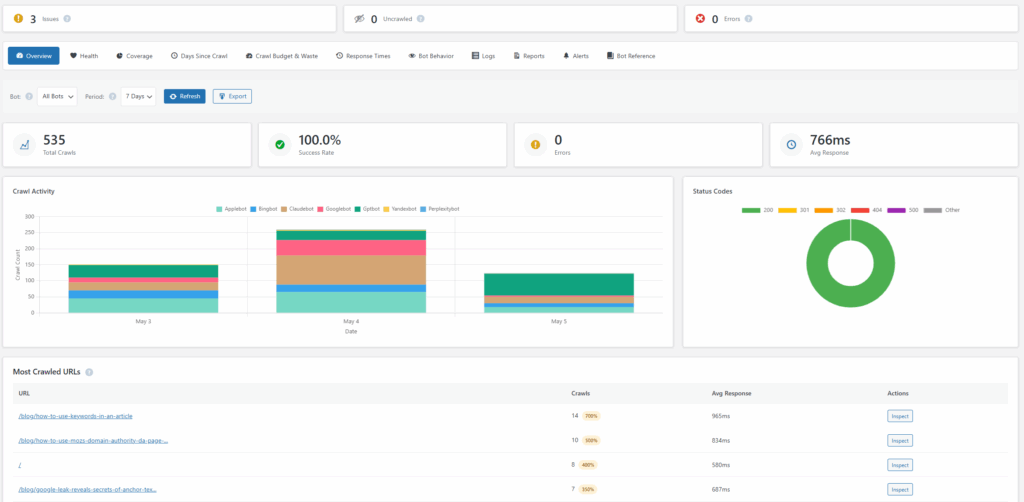
This is the angle most guides miss. WordPress runs through PHP for nearly every dynamic request, which means an application-layer logger sees almost everything Google, Bing, and AI bots do — without raw log access, without a CDN integration, without parsing files in Excel.
There’s an honest catch worth naming: PHP-layer logging doesn’t see static assets served directly by Nginx or Apache. Images, CSS, and JS files cached at the web-server layer never hit PHP, so they don’t show up. For SEO purposes that matters less than it sounds — you mostly want to know what Google is doing with your pages — but if you’re auditing image crawl or trying to debug why Googlebot is fetching enormous CSS bundles, you’ll still want raw access logs or edge logs as a complement.
If you’re on Squarespace, Wix, or basic Shopify
You don’t get logs. Period. Your only options are Search Console’s Crawl Stats (Google-only, 90 days, summarized), Bing Webmaster Tools, or putting the site behind Cloudflare’s free tier and using a Worker to capture edge logs.
How to verify Googlebot (and why you have to)
User agent strings are trivially fakeable. A 2024 analysis from HUMAN Security found that around 16.7% of “ChatGPT-User” traffic was spoofed, and similar fakery affects every well-known bot. You can’t trust the UA alone.
The two-step verification process Google itself recommends:
- Reverse DNS the IP that hit you. Run
host <ip>(Linux/Mac) ornslookup <ip>(Windows). For real Googlebot, the result will end in.googlebot.comor.google.com. - Forward DNS that hostname back. Run
host <hostname>. The IP it returns must match the original IP.
Both steps need to match. This is called Forward-confirmed Reverse DNS (FCrDNS).
If you don’t want to do this manually, every major search engine and AI company now publishes JSON files of their official crawler IP ranges:
- Googlebot:
https://developers.google.com/search/apis/ipranges/googlebot.json - Google special crawlers:
https://developers.google.com/search/apis/ipranges/special-crawlers.json - Google user-triggered fetchers:
https://developers.google.com/search/apis/ipranges/user-triggered-fetchers.json - Bingbot:
https://www.bing.com/toolbox/bingbot.json(released by Microsoft in 2022) - OpenAI GPTBot:
https://openai.com/gptbot.json - OpenAI SearchBot:
https://openai.com/searchbot.json - OpenAI ChatGPT-User:
https://openai.com/chatgpt-user.json - DuckDuckGo:
https://duckduckgo.com/duckduckbot.json - Apple Applebot: verified via reverse DNS to
*.applebot.apple.com - Anthropic: deliberately publishes no IP ranges — verification is by user agent and behavior only
Refresh these monthly. The ranges change.
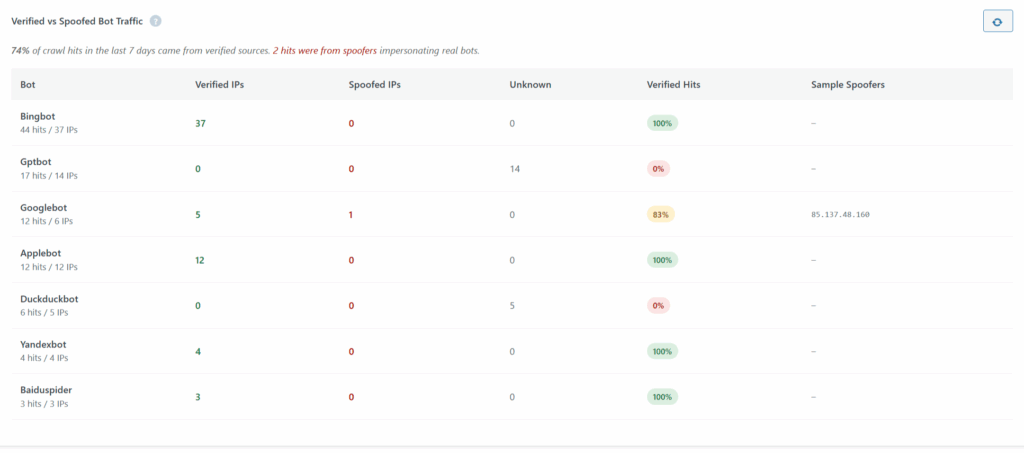
If verifying every IP sounds like a part-time job, this is exactly the kind of work an application-layer logger handles automatically. Linkilo → Crawl Logs → Bot Behavior runs reverse-DNS verification on every request and tags spoofed bots in real time, so the “Googlebot” rows in your reports actually mean Googlebot.
The AI crawler reality in 2026
This is where modern log analysis diverges from what older guides taught. The crawler ecosystem is no longer “Googlebot, Bingbot, and a few others.” It’s a stratified mess of training crawlers, search index crawlers, and on-demand user-fetchers — each with different implications for your traffic and your content rights.
Linkilo’s Crawl Log Analyzer tracks 40+ bots, tagged by intent into three categories: live answer (a user just asked an AI about your URL), training (the AI is collecting data to train future models), and user-pasted link (someone pasted your URL into a chat and the AI fetched it). That intent tagging is the single most useful piece of context for these decisions, because the right action depends entirely on which kind of bot just hit you.
Here’s the breakdown that actually matters:
Training crawlers (collect data to train future AI models)
| Crawler | Operator | Should you allow it? |
|---|---|---|
| GPTBot | OpenAI | Block to opt out of training future GPT models. Will not affect ChatGPT search visibility. |
| ClaudeBot | Anthropic | Block to opt out of Claude training. Anthropic clarified its crawling behavior in 2025 after aggressive activity drew complaints. |
| CCBot | Common Crawl | Indirectly feeds OpenAI, Anthropic, Meta, Mistral, and others. Now the most-blocked AI-related crawler in the top 1,000 sites. |
| Google-Extended | A control token, not a crawler. Block to opt out of Gemini/Vertex training. It does not block Google AI Overviews — those use Googlebot. | |
| Applebot-Extended | Apple | Block to opt out of Apple Intelligence training without losing Spotlight/Siri visibility. |
| Meta-ExternalAgent | Meta | Block to opt out of Llama training. |
| Bytespider | ByteDance | Notoriously ignores robots.txt. Block at the firewall, not just in robots.txt. |
Search and citation crawlers (build indexes that produce citations to your site)
| Crawler | Operator | Should you allow it? |
|---|---|---|
| Googlebot | Yes. This is your primary search visibility. | |
| Bingbot | Microsoft | Yes. Powers Bing, ChatGPT search, and Copilot results. |
| OAI-SearchBot | OpenAI | Yes if you want ChatGPT search to surface your content. |
| PerplexityBot | Perplexity | Yes if you want Perplexity citations. Note the integrity issues below. |
| Claude-SearchBot | Anthropic | Yes if you want Claude search citations. |
| DuckAssistBot | DuckDuckGo | Yes if you want DuckDuckGo AI assist citations. |
User-action fetchers (fire when a user asks the AI a question)
| Crawler | Operator | Notes |
|---|---|---|
| ChatGPT-User | OpenAI | Real-time fetch when a ChatGPT user asks about your URL. High-intent. |
| Claude-User | Anthropic | Same role for Claude. |
| Perplexity-User | Perplexity | Same role for Perplexity. |
| Meta-ExternalFetcher | Meta | Meta’s docs note it “may bypass robots.txt”. |
What changed — and why this is a strategic decision, not just a technical one
Cloudflare published the crawl-to-referral ratios across its network in 2025 — meaning, for every X requests an AI company made to a site, how many human visitors did its product send back? The numbers were lopsided: Anthropic at roughly 70,900:1, OpenAI at 1,500:1, Perplexity at 195:1, Google at about 14:1, and Mistral the only outlier at 0.1:1.
AI Crawler Take vs. Give: The Referral Ratio Reality
For every X requests an AI company makes to your site, how many human visitors does it send back?
Anthropic
70,900 : 1
OpenAI
1,500 : 1
Perplexity
195 : 1
14 : 1
Mistral
0.1 : 1
Source: Cloudflare network data, 2025. Bar widths use a square-root scale because raw values span six orders of magnitude — a linear scale would render every bar except Anthropic invisible.
Why this matters for your robots.txt decisions
Most AI companies take far more from your site than they send back. Log analysis is the only way to confirm whether your robots.txt rules are actually being honored — Cloudflare delisted Perplexity from its Verified Bots program in August 2025 after catching it using stealth user agents to evade no-crawl directives.
In plain English: most AI companies take far more from your site than they send back. That’s the conversation publishers have been having since 2024, and it’s why Cloudflare delisted Perplexity from its Verified Bots program in August 2025 after catching it using stealth user agents to evade no-crawl directives.
For your purposes: log analysis is now the only way to know what AI bots are actually doing on your site, whether your robots.txt rules are being honored, and whether your decisions are working.
The two AI crawler issues your other tools won’t catch
The Googlebot dual-use problem. Googlebot fetches pages for both classic search and AI training. There’s no separate UA. If you wanted to block Google from training on your content, you’d kill your search visibility. The only meaningful opt-out is Google-Extended (which only affects Gemini and Vertex AI training, not AI Overviews) or page-level nosnippet (which kills regular snippets too).
The AI tracking tool contamination problem. Tools that monitor “AI search visibility” fire RAG-style requests against your pages to test prompt responses. Those hits land in your logs and look like bot traffic. If you’re trying to measure real AI crawler interest, you have to filter these out.
What to look for: the seven highest-value findings
When you’ve got the data flowing, these are the patterns that turn into ranking decisions.
The 16-Bucket Crawl Waste Taxonomy
Click any bucket to see the specific fix. Each tier has a different remediation path — that’s why lumping them together as “crawl budget issues” hides the action items.
Tier 1 — Hard Waste
URLs that should never have been crawled at all
Fix: robots.txt or 410 Gone
404 pages
410 Gone or 301
Soft 404s
Convert to 404 or fix content
Internal search results
Block in robots.txt
Tracking parameters
Canonical + edge rewrite
Session IDs
Strip from URLs
Tier 2 — Probable Waste
URLs that were crawled but probably shouldn’t be indexed
Fix: noindex or canonical strategy
Faceted navigation
noindex + canonical
Sort/order parameters
Canonical to default
Pagination beyond page 5
noindex deep pages
Tag and date archives
noindex thin archives
Duplicate canonical targets
Consolidate canonicals
Tier 3 — Configuration Waste
URLs that signal a misconfiguration somewhere
Fix: developer ticket
Redirect chains
Single-hop 301s
Mixed-protocol crawls
HSTS + force HTTPS
Trailing-slash duplicates
Pick one convention
Case-sensitivity duplicates
Force lowercase
Re-crawled resource files
Long cache headers
Admin/login URLs hit by bots
401 for bots
Recommended fix
Tap any bucket above to see its specific remediation path.
1. 4xx and 5xx errors served to bots
A small percentage of errors is normal. A pattern of errors on important URLs is a fix priority. Persistent 5xx errors cause Google to throttle its crawl rate, which compounds the damage.
2. Redirect chains
A 301 → 301 → 200 sequence wastes one crawl request for no reason. A chain longer than five hops can cause Google to give up. Logs reveal these instantly because every hop is a separate log line.
3. Soft 404s
Pages that return HTTP 200 but contain “Sorry, this page isn’t available” or near-empty content. Google treats these as 404s anyway, but they look fine to most monitoring. Cross-reference response sizes — anything 200 with a suspiciously small byte count deserves a look.
4. Crawl waste on parameters and faceted navigation
This is the biggest single category of fixable waste, and it deserves its own framework. Linkilo’s Crawl Log Analyzer breaks Crawl Waste % into a 16-bucket taxonomy across three tiers:
Hard waste — URLs that should never have been crawled at all:
- 404 pages
- Soft 404s
- Internal search results
- Tracking parameters (UTM, fbclid, gclid)
- Session IDs
Probable waste — URLs that were crawled but probably shouldn’t be indexed:
- Faceted navigation combinations
- Sort/order parameters
- Pagination beyond page 5
- Tag and date archives
- Duplicate canonical targets
Configuration waste — URLs that signal a misconfiguration somewhere:
- Redirect chains
- Mixed-protocol crawls (HTTP variants of HTTPS pages)
- Trailing-slash duplicates
- Case-sensitivity duplicates
- Resource files Googlebot probably doesn’t need to recrawl
- WordPress admin/login URLs (these should be 401-ing bots, not 200-ing them)
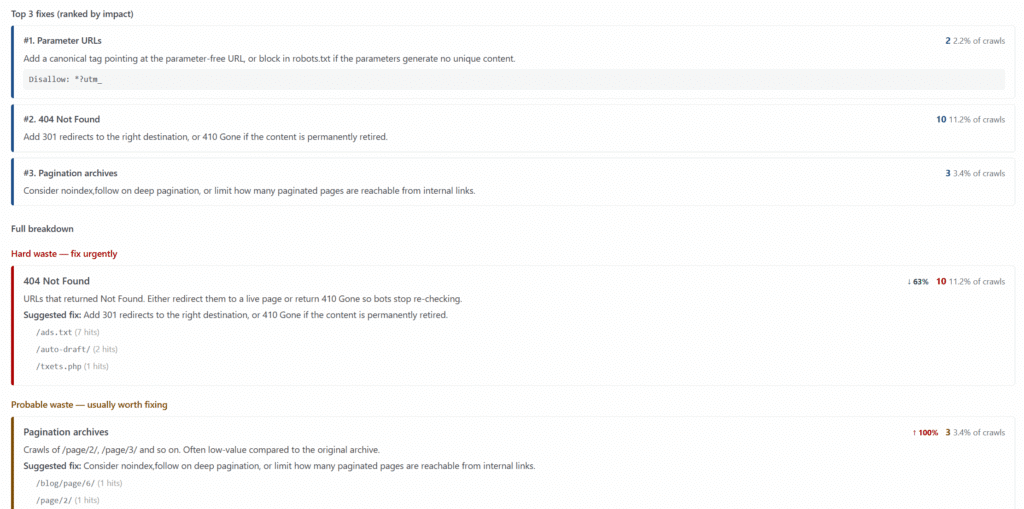
The reason to break it out this way: each bucket has a different fix. Hard waste needs robots.txt or 410. Probable waste needs noindex or canonical strategy. Configuration waste is a developer ticket. Lumping them together as “crawl budget issues” hides the action items.
5. Orphan URLs Google found anyway
URLs that show up in logs but aren’t in your internal link graph. Often left over from old templates, deleted pages with stale backlinks, or accidental sitemap exposure. On WordPress, the Linkilo → Reports → Orphan Page Finder crosses your published posts against the internal link graph automatically.
6. Important pages crawled too rarely
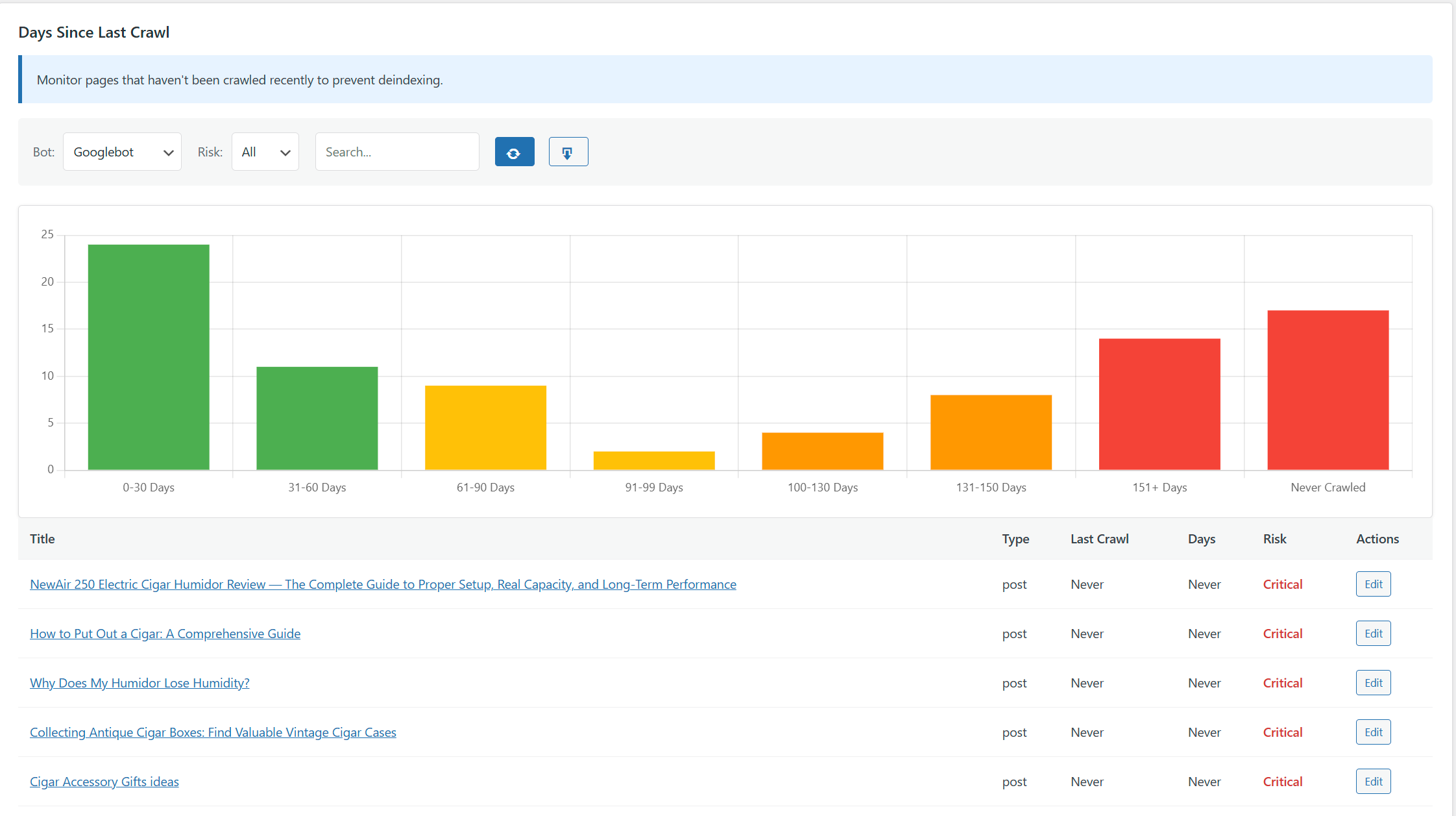
Your homepage might get crawled hourly. Your highest-converting category page should get crawled at least daily. If logs show Google visits an important URL only every few weeks, that’s a signal to add internal links and improve discoverability.
Linkilo’s Crawl Log Analyzer surfaces this directly in the Days Since Last Crawl view, which shows a per-URL count of how many days have passed since each page was last visited by any bot. Pages crawled too infrequently float to the top, sorted by staleness — so you can see at a glance which URLs have gone quiet and for how long.
7. Mobile vs. desktop bot ratio anomalies
Google has been mobile-first for years. If your logs show heavy Googlebot Desktop activity on a site that’s been mobile-first indexed, something is misconfigured.
How often you should do this (and the Health Score that tells you)
Continuous monitoring is the right answer for any site large or active enough to need log analysis at all. Quarterly audits are fine for stable mid-market sites. Twice a year is the floor for small ones.
But “monitoring” is vague. What does it actually mean to monitor your crawl?
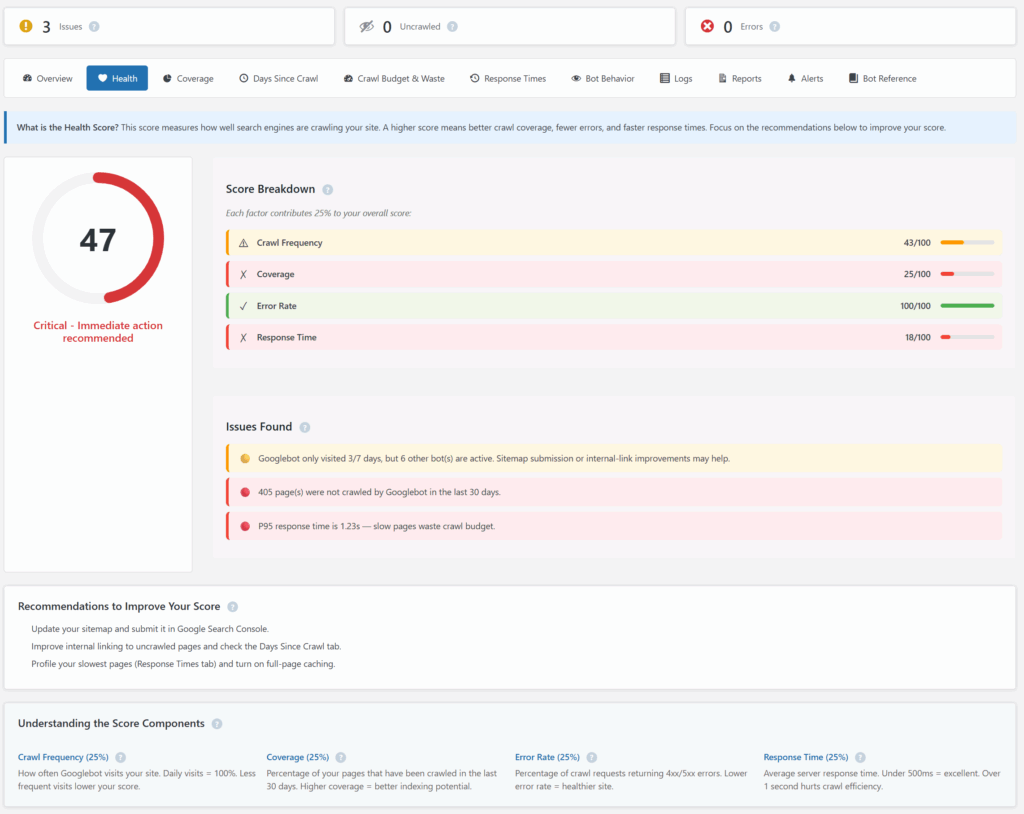
The honest answer is: track a small number of metrics that aggregate the messy stuff into a single signal. Linkilo’s Crawl Log Analyzer rolls four equally-weighted dimensions into a Health Score (0–100):
- Crawl Frequency — are bots visiting often enough?
- Page Coverage — are they reaching the URLs that matter?
- Error Rate — what percentage of requests return 4xx or 5xx?
- Response Time — is the server fast enough that bots aren’t backing off?
Each component sits on a 0–100 scale; the Health Score is the average. The number itself isn’t magic — what matters is the trend. A site that drifts from 88 to 72 over a month has a problem. The component breakdown tells you which one.
Trigger events that demand an immediate analysis regardless of schedule: site migrations, major redesigns, traffic drops in Search Console, large indexation changes, after a Google Core Update, or when you suddenly see new AI bot activity.
For sites with massive log volume, sampling is acceptable. A 10% random sample of Googlebot requests will surface every meaningful pattern; you only need the full dataset for forensic investigation.
Tools: what to use at every budget
Pick based on your site’s stack, your size, and how often you’ll do this.
If you’re on WordPress
The natural fit is an application-layer logger. Linkilo → Crawl Logs is built for this — it captures PHP-layer requests, runs reverse-DNS verification on every bot, classifies AI crawlers with intent tags, and surfaces the 16-bucket Crawl Waste breakdown without any data plumbing. The free engine handles the basics; the AI engine adds semantic categorization of crawl waste and AI-bot intent classification.
The trade-off, again: PHP-only logging doesn’t see static assets the web server hands back directly. For a WordPress site doing SEO work, that’s the right trade. For a site debugging image crawl issues, you’ll still want raw access logs alongside.
If you’re on a non-WordPress stack or want desktop tooling
Screaming Frog SEO Log File Analyser — £99/year, free up to 1,000 events. Version 7.0 (April 2026) added AI bot verification. Desktop limit roughly 1–2 GB of logs.
Seolyzer — SaaS with a free tier up to 10,000 URLs; paid plans around $35+/month. Good Cloudflare Worker setup.
Mid-market SaaS
- JetOctopus — from $237/month annually. Dedicated AI Bots Analyzer.
- OnCrawl — from €49/month for the basic crawler; log analysis pricing custom.
- Ahrefs Bot Analytics — free in beta as of May 2026 for Ahrefs subscribers.
Enterprise
- Botify — custom pricing typically $75K–$400K+/year. Best for sites over 500K URLs.
- Lumar (formerly Deepcrawl) — strongest for governance and CI/CD integration.
- Conductor — best for real-time monitoring; native Logpush, DataStream, and Fastly integrations.
- seoClarity Bot Clarity — explicitly tracks Gemini, OpenAI, and Perplexity bots.
Cloud-scale DIY
- BigQuery + Looker Studio — for tens of millions of log lines per day. Cloudflare Logpush ships directly to BigQuery; query costs ~$6.25 per TB processed.
- Splunk — if your security team already runs it.
- ELK / OpenSearch stack — fully open-source.
- Python with advertools —
logs_to_dfplus pandas handles millions of lines on a laptop.
A note on what these tools share: none of them, including ours, gives you a complete picture by itself. A serious log analysis on a CDN-fronted WordPress site usually means combining edge logs (Cloudflare/Fastly/CloudFront) with application logs (Linkilo or similar) with Search Console data. The Crawl Reality Gap doesn’t close from a single source.
A practical walkthrough on WordPress
Let’s actually do this. Here’s the workflow on a WordPress site, with no raw log access required.
1. Turn on Crawl Logging
Open Linkilo → Crawl Logs in your WordPress admin. If logging isn’t already enabled, you’ll see a one-click activation. Logging starts immediately for all incoming requests routed through PHP.
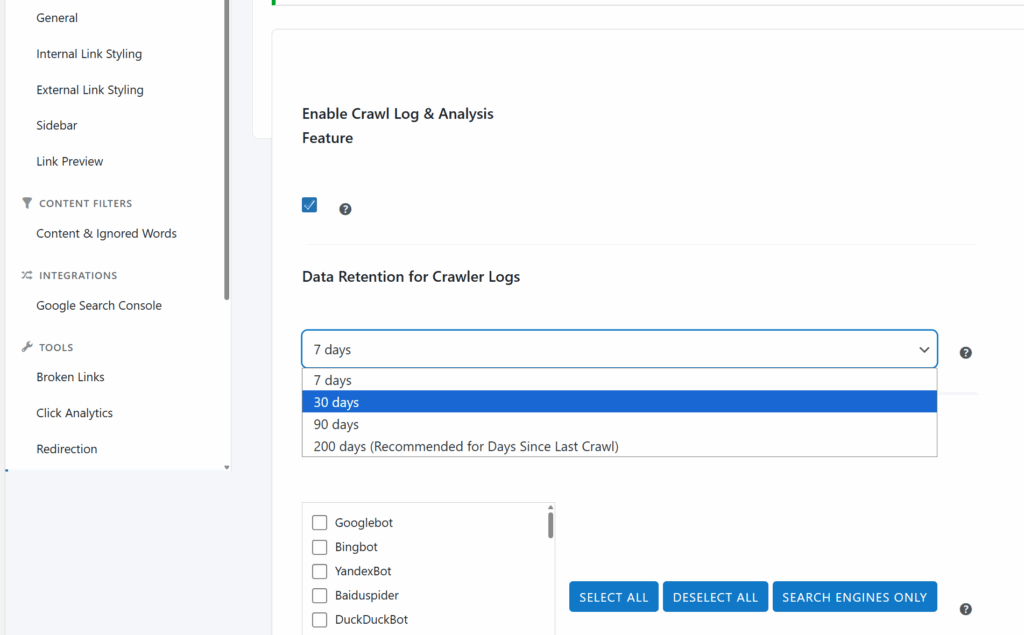
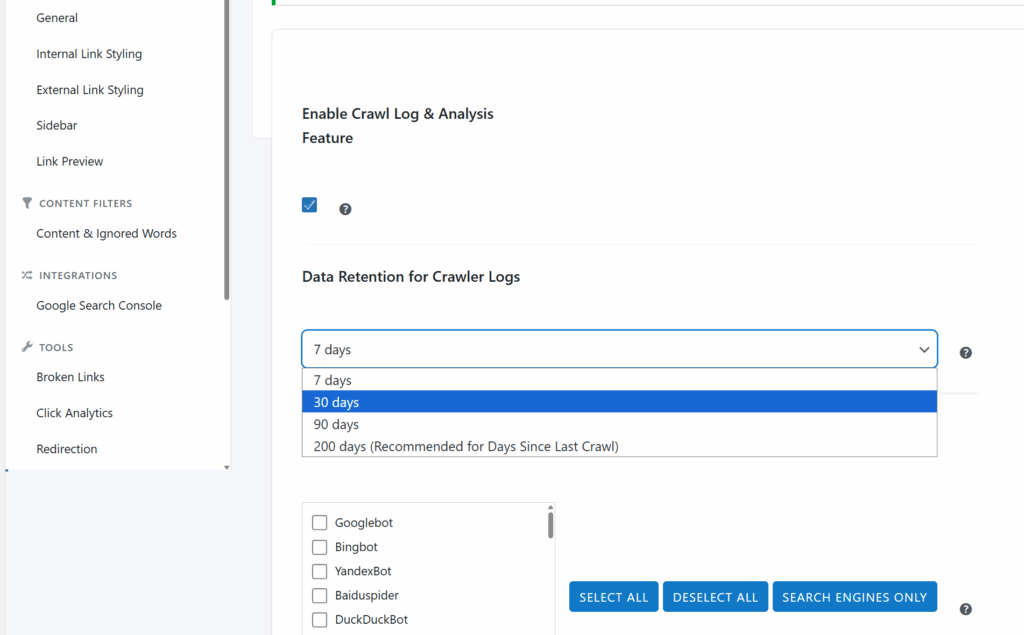
Sidenote. Default retention is 30 days. Bump it to 90 if you have the database headroom — you want at least one full month of post-publish data to evaluate how a new content type is being crawled.
2. Let it collect for at least 7 days
Crawl patterns take time to surface. A single day of logs will show you Googlebot’s hourly activity but not its weekly rhythm. Week one is the minimum; two to four weeks is better.
3. Open the Health tab
Once you have a week of data, Linkilo → Crawl Logs → Health gives you the Health Score and its four-component breakdown. If the score is below 70, the breakdown tells you which dimension is dragging it down. Start there.
4. Open the Crawl Waste tab
Linkilo → Crawl Logs → Crawl Waste breaks down requests by the 16-bucket taxonomy. Sort by volume. The biggest bucket is your biggest fix — but “biggest” doesn’t always mean “easiest.” A 12% Hard Waste tier from 404s is often a faster win than a 30% Probable Waste tier from faceted navigation, even though the second is bigger.
5. Open the Bot Behavior tab
Linkilo → Crawl Logs → Bot Behavior is where the AI crawler picture lives. Each bot is tagged with intent (live answer / training / user-pasted link). Spoofed bots are flagged separately. This is where you find out whether your robots.txt blocks are actually being honored — or whether ClaudeBot is still ignoring them.
6. Open the GSC Inspect tab
This is the closing-the-loop step. Linkilo → Crawl Logs → GSC Inspect lets you take any URL from your logs and run Google’s URL Inspection on it without leaving the dashboard, including bulk inspection. If logs show Googlebot crawled a URL daily for two weeks but Search Console says “Discovered – currently not indexed,” that’s a content-quality conversation, not a crawl-budget one. The inspection confirms it.
7. Set alerts and walk away
Linkilo → Crawl Logs → Alerts lets you set thresholds (Health Score below X, error rate above Y, bot drops, sudden AI bot spikes). The point of monitoring is to not have to look — until something changes.
8. Cross-reference with a crawl
For the deepest analysis, run a Screaming Frog or similar crawl against your site and compare its URL list with your log URL list. URLs in logs but not in the crawl are orphan URLs. URLs in the crawl but not in logs are pages Google has decided to ignore. Both lists are action items.
Using logs in real-world scenarios
Site migrations
Logs are the single best validation tool for a migration. Before launch, capture a baseline: which URLs does Google crawl, how often, with what status codes? At launch, watch for 404s and broken redirects in real time. After launch, compare crawl patterns to the baseline. Glenn Gabe’s guide to using GSC’s Crawl Stats during migrations is the practitioner reference.
JavaScript and SPA rendering
Logs reveal whether Googlebot’s Web Rendering Service is actually fetching your JS bundles, CSS, and API endpoints. If WRS isn’t loading your content scripts, Google is indexing an empty shell. Bartosz Goralewicz’s Vicious Cycle of the Low Crawl Budget covers this in depth.
WooCommerce and ecommerce
The faceted navigation problem is universal. Logs let you quantify exactly how much crawl is being burned on filter combinations no human will ever land on. The fix — robots.txt rules, noindex headers, or canonical strategies — gets prioritized by impact when you have the numbers.
News and publishers
Time-to-crawl matters. If a breaking story takes Google 30 minutes to discover, that’s lost ranking opportunity. Logs let you measure first-crawl latency for new URLs and tune your sitemap, internal linking, and Google News submissions accordingly.
Post-Core-Update analysis
After a major Google update, comparing pre- and post-update crawl patterns often reveals which URL types Google now finds more or less interesting. If crawl frequency drops on a content type that lost rankings, that’s a strong signal.
Privacy, GDPR, and how long to keep logs
If your site serves EU or UK visitors, log files are subject to GDPR. The Court of Justice of the EU has held that IP addresses can constitute personal data when combined with other information, which means raw logs are personal data by default.
Practically:
- Have a lawful basis for log processing. “Legitimate interest” is the usual justification for security and SEO purposes.
- Document retention. Most guidance suggests 30–90 days for full logs, then deletion or anonymization.
- Consider IP anonymization. Truncating IPv4 addresses to /24 (the last octet) and IPv6 to /64 retains most of the SEO value while reducing personal-data exposure. Sematext has a thorough technical guide.
- Watch cross-border transfers. If you’re streaming logs from EU traffic to BigQuery in the US, you need an appropriate transfer mechanism.
This isn’t optional, and “we didn’t think about it” is not a defense.
The mistakes that quietly ruin log analyses
A short list, because this is where projects go sideways:
- Trusting user agent strings without IP verification. Spoofed Googlebot is common.
- Analyzing only origin logs when you’re behind a CDN. You’ll miss most of what’s actually happening.
- Mixing time zones. Server logs, GSC data, and analytics all have their own time zones.
- Ignoring AI tracking tools that pollute your data. Their RAG calls look like AI bot traffic but tell you nothing about real AI search interest.
- Forgetting that Cloudflare data is Cloudflare-only. Industry stats from Cloudflare are directionally accurate but represent roughly 20% of the internet.
- Doing a one-time analysis and never revisiting. Crawl behavior changes constantly. So should your view of it.
Frequently asked questions
What is log file analysis in SEO? Log file analysis is the process of examining your web server’s access log files to understand how search engine and AI crawlers interact with your site — which URLs they request, how often, what response codes they get, and what they ignore. It’s the only data source that shows actual crawler behavior rather than reported or sampled views.
How is log file analysis different from Google Search Console? Search Console shows Google’s summarized view of its own crawling, limited to 90 days and rounded for display. Logs show every request from every bot, in real time, with full detail. Logs also reveal Bing, AI crawlers, and any other bot Search Console doesn’t report.
How do I do log file analysis on WordPress? You have three options. First, pull raw access logs from your host (cPanel, Kinsta dashboard, etc.) and parse them in Screaming Frog Log File Analyser or Excel. Second, set up edge logging through your CDN if you have one. Third, use an application-layer logger like Linkilo’s Crawl Log Analyzer that captures PHP-layer requests directly inside WordPress without needing raw log access.
How do I verify that a bot is really Googlebot? Run reverse DNS on the IP, check that the hostname ends in .googlebot.com or .google.com, then run forward DNS on that hostname and confirm it returns the original IP. Or match the IP against Google’s official googlebot.json file. User agent alone is insufficient.
Should I block GPTBot in my robots.txt? Block it if you don’t want OpenAI to use your content for training future GPT models. Blocking GPTBot does not affect ChatGPT search visibility — that’s a separate crawler called OAI-SearchBot. Most publishers who want AI search citations now allow OAI-SearchBot while blocking GPTBot.
Will blocking AI crawlers hurt my Google rankings? Blocking AI-specific crawlers (GPTBot, ClaudeBot, etc.) does not affect Google rankings because they are separate from Googlebot. Blocking Google-Extended opts you out of Gemini and Vertex AI training without affecting search.
How often should I do log file analysis? Continuously for enterprise sites; quarterly for mid-market; twice a year for small sites. Always run an analysis after a migration, redesign, traffic drop, or major Google update.
Can I do log file analysis without server access? On WordPress, yes — an application-layer logger like Linkilo’s Crawl Log Analyzer captures PHP-layer requests without raw log access. On other CMSs, you can use Search Console’s Crawl Stats for a Google-only view, plus Bing Webmaster Tools, plus Cloudflare’s free tier with a Worker for edge logging.
How long should I keep server log files? For SEO purposes, 30–90 days of full logs is standard, with anonymized or aggregated data kept longer. GDPR pushes toward shorter retention of personally identifiable data; truncating IP addresses lets you keep logs longer without holding raw personal data.
What’s the difference between GPTBot, ChatGPT-User, and OAI-SearchBot? GPTBot crawls the web to collect training data for future OpenAI models. OAI-SearchBot crawls the web to build the index that powers ChatGPT search. ChatGPT-User fires in real time when a ChatGPT user asks the assistant to fetch a specific URL. They have separate user agents and separate IP ranges, and the right blocking decision can differ for each.
Is log file analysis worth it for a small WordPress site? Usually not as a routine practice for sites under 1,000 URLs with stable content and no faceted navigation. It’s worth doing once to confirm there are no hidden crawl issues, and worth doing again after any major change. For sites with WooCommerce filters, parameters, or recent migrations, it’s worth doing regardless of size.
Final thoughts
Log file analysis sits in the same uncomfortable space as flossing: everyone in technical SEO knows they should do it, most don’t do it consistently, and the ones who do quietly outperform the ones who don’t. The reason is simple — logs are the only honest record of what crawlers actually do on your site, and crawler behavior is the substrate underneath every ranking, every indexation, and now every AI citation.
If you take one thing from this guide, take this: close the Crawl Reality Gap. Get logs flowing somewhere queryable, even if you don’t analyze them yet. On WordPress, that can mean five minutes in Linkilo → Crawl Logs. On other stacks, it means setting up a CDN log pipeline. Either way, the hardest part is the data plumbing. Once that’s running, the analysis is a weekend of work that pays back for years.
The rest is just learning to read the journal your server has been keeping all along.
Frequently Asked Questions About Log File Analysis
Get answers to the most common questions about analyzing server logs for SEO and AI crawler insights
What is log file analysis in SEO?
Log file analysis is the process of examining your web server’s access log files to understand how search engine and AI crawlers interact with your site — which URLs they request, how often, what response codes they get, and what they ignore. It’s the only data source that shows actual crawler behavior rather than reported or sampled views.
How is log file analysis different from Google Search Console?
Search Console shows Google’s summarized view of its own crawling, limited to 90 days and rounded for display. Logs show every request from every bot, in real time, with full detail. Logs also reveal Bing, AI crawlers, and any other bot that Search Console doesn’t report on at all.
How do I do log file analysis on WordPress?
You have three options. First, pull raw access logs from your host (cPanel, Kinsta dashboard, etc.) and parse them in Screaming Frog Log File Analyser or Excel. Second, set up edge logging through your CDN if you have one. Third, use an application-layer logger like Linkilo’s Crawl Log Analyzer that captures PHP-layer requests directly inside WordPress without needing raw log access.
How do I verify that a bot is really Googlebot?
Run reverse DNS on the IP, check that the hostname ends in .googlebot.com or .google.com, then run forward DNS on that hostname and confirm it returns the original IP. Or match the IP against Google’s official googlebot.json file. User agent alone is insufficient — around 16.7% of “ChatGPT-User” traffic has been found to be spoofed, and similar fakery affects every well-known bot.
Should I block GPTBot in my robots.txt?
Block it if you don’t want OpenAI to use your content for training future GPT models. Blocking GPTBot does not affect ChatGPT search visibility — that’s a separate crawler called OAI-SearchBot. Most publishers who want AI search citations now allow OAI-SearchBot while blocking GPTBot.
Will blocking AI crawlers hurt my Google rankings?
Blocking AI-specific crawlers (GPTBot, ClaudeBot, etc.) does not affect Google rankings because they are separate from Googlebot. Blocking Google-Extended opts you out of Gemini and Vertex AI training without affecting search. The only crawler that affects classic Google search visibility is Googlebot itself.
How often should I do log file analysis?
Continuously for enterprise sites; quarterly for mid-market; twice a year for small sites. Always run an analysis after a migration, redesign, traffic drop, or major Google update. Continuous monitoring through alerts on a Health Score is more practical than scheduled deep-dives for most teams.
Can I do log file analysis without server access?
On WordPress, yes — an application-layer logger like Linkilo’s Crawl Log Analyzer captures PHP-layer requests without raw log access. On other CMSs, you can use Search Console’s Crawl Stats for a Google-only view, plus Bing Webmaster Tools, plus Cloudflare’s free tier with a Worker for edge logging.
How long should I keep server log files?
For SEO purposes, 30–90 days of full logs is standard, with anonymized or aggregated data kept longer. GDPR pushes toward shorter retention of personally identifiable data; truncating IPv4 addresses to /24 and IPv6 to /64 lets you keep logs longer without holding raw personal data.
What’s the difference between GPTBot, ChatGPT-User, and OAI-SearchBot?
GPTBot crawls the web to collect training data for future OpenAI models. OAI-SearchBot crawls the web to build the index that powers ChatGPT search. ChatGPT-User fires in real time when a ChatGPT user asks the assistant to fetch a specific URL. They have separate user agents and separate IP ranges, and the right blocking decision can differ for each.
Is log file analysis worth it for a small WordPress site?
Usually not as a routine practice for sites under 1,000 URLs with stable content and no faceted navigation. It’s worth doing once to confirm there are no hidden crawl issues, and worth doing again after any major change. For sites with WooCommerce filters, parameters, or recent migrations, it’s worth doing regardless of size.
What is the Crawl Reality Gap?
The Crawl Reality Gap is the delta between what Search Console shows you, what your origin server logs show you, and what’s actually hitting your site (including CDN edge requests that never reach your origin). For a typical WordPress site behind Cloudflare, those three views can disagree by an order of magnitude. Closing this gap requires combining edge logs, application logs, and Search Console data.
Why does log analysis fail behind a CDN?
A CDN serves cached responses from edge servers without ever hitting your origin. That means a bot can crawl 10,000 pages on your site while your origin Apache log shows almost nothing. The real activity lives at the edge, so you need edge logs from Cloudflare Logpush, AWS CloudFront, Akamai DataStream, Fastly, or an application-layer logger that captures requests inside WordPress directly.
What is crawl efficacy and why does it matter more than crawl budget?
Crawl efficacy reframes the question from “how much does Google crawl?” to “is Google reaching the URLs that actually matter to your business?” Even a 5,000-page site with faceted navigation can have Googlebot spending most of its requests on URLs that should never be indexed. This frame makes log analysis valuable for sites of every size, not just enterprise sites with millions of URLs.
Linkilo does this for you
- Crawl Log File Analyzer : See exactly which pages Google and the AI crawlers actually visit, inside WordPress, with no log files to download.
- Redirection Manager : Catch 404s as they happen and redirect them before anyone notices the traffic went missing.
- WordPress MCP for AI Assistants : Let Claude or ChatGPT read and update your WordPress site directly. No copy-paste, no plugins in between.

Jay - Linkilo
Jay's the brains behind cool tools like Linkilo, helping marketers rock their SEO game. He's all about data-driven strategies and using AI to boost results. He's been at this for a decade and loves figuring out what works (and what doesn't) to get more leads without paying a fortune. <a href="https://www.linkedin.com/in/jay-kang-80b103309/">Linkedin</a>